File
Click File in the top navigation bar to enter the file module, where you can manage projects, import reference models and measured models, and create automation templates.
Note
By default, when you first launch the software, a new project will be created.
Project Management
In the File Tools bar, click  Project to expand the drop-down list, which supports New / Save / Save As / Open Project (.SNIProj) / Open Template (.SNITemplate) and more.
After creating a project, you can click Save as Template to transform the project file into a template (*.SNITemplate) and save it locally.
Note
Templates only support one measured model. When there is a measurement group in the tree view, the project cannot be saved as a template.
Subsequently, you can click New Project > Create from Template, select a template and measured model file, to quickly create a project using the same alignment, comparison, and other methods; you can also import the template into the Auto Inspector tool for use.
Note
- Support using already created automation templates to create projects.
- If the current project has no data or has not been modified, the options to create a new project, save, or save as will not be available.
- If the current project has data or has been modified, when creating a new project or opening a project, please follow the instructions in the
 pop-up window.
 - If it prompts that "
 The imported file is invalid", please check the imported file format.
Reference Models
Import
In the File Tools bar, click  Import Reference Data to open the file selection window, where you can choose the reference model to be imported into the software as a reference standard for measurement. This reference model will be used for subsequent inspection calculations.
After importing the reference model, the  model object will be displayed in the left-side tree view, where you can right-click on the reference model to delete it.
Note
- Multiple reference models can be imported.
- Supported file formats for reference models include: STP, STEP, IGS, IGES, STL, PLY and OBJ.
- If the model file is large, it will prompt that "
 Importing data...", and please wait patiently until this process completes before performing any operations.
 - When importing CAD models (STP) and the model is abnormal, you can repair the model through the preprocessing pop-up, which effectively improves data quality; if the repair option is not checked and the data is imported directly, there will be issues such as feature recognition abnormalities.
Export
Support exporting reference models as STP, STEP, IGS, IGES, STL, PLY and OBJ formats.
- If the reference model is CAD, it supports exporting as STP, STEP, IGS, IGES, STL, PLY and OBJ formats.
- If the reference model is mesh, it supports exporting as STL, PLY and OBJ formats.
Measured Models
Import
In the File Tools bar, click  Import Measured Model to open the file selection window, where you can choose the measured model to be imported into the software.
After importing the measured model, the  model object will be displayed in the left tree view, and the corresponding
  alignment group will be displayed in the
  alignment module for the measured model; support deleting and replacing measured models via right-click (triggering the recalculation function).
Note
- Support importing multiple measured models and choosing whether to combine multiple measured models into one group for management.
- Supported file formats for measured models include: STL, PLY , OBJ, ACS, TXT, XYZ and P3.
- If the model file is large, it will prompt that " Importing model...", and please wait patiently until the model loading completes before performing operations.
Export
Support exporting aligned measured models as STL, PLY, OBJ, ACS, TXT, and XYZ.
- If the measured model is mesh, it supports exporting as STL, PLY, OBJ formats.
- If the measured model is point cloud, marker points, or frame points, it supports exporting as ACS, TXT, XYZ and P3 formats.
Recalculation
Right-click on a Measured Data object and click Replace Measured Data to open the corresponding window, where you need to  select a file and Confirm, and it will trigger the recalculation function to recalculate all related node objects in the left-side tree view.
Note
- If a node object fails to calculate successfully, it will be marked with
 to indicate an illegal state.
 - Editing an align object (best-fit alignment or matrix alignment) or modifying the parameters for Extract Measured Feature will also trigger the recalculation function.
Import Reference Points
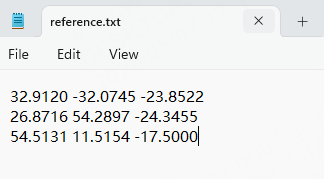
Support importing reference points (TXT format), create RPS points for RPS alignment and comparison points.
Note
- Reference point X, Y, Z coordinates need to be separated by spaces.
- Please import the reference model first before using this function to import reference points.
Automation Templates
In the file toolbar, click  Automation Templates to expand the drop-down list, which supports New Template / Edit Template / Save Template / Save Template As (*.SNITemplate).
Note
If there is data in the current interface, when creating or opening a template, please follow the instructions in the prompt dialog.
The steps for creating automation templates are as follows:
-
After clicking New Template, the Import Reference Data window will pop up. Select the reference model that needs to be imported into the software.
-
The software will automatically generate a triangulated measurement model based on the imported reference model and will enter the "
 Creating template" status.
 Note
- The model file can only contain one measurement model.
- You can exit the creating template status by creating or opening a project.
-
(Optional) Perform operations such as alignment or comparison on the model.
- Click Save Template / Save Template As and select the save path in the pop-up window to save the template locally.
- Consequently, you can click Edit Template to choose an existing local template for editing; you can also click Project > Create Project > Create Project from Template to quickly create a project using the same alignment, comparison, and other methods.