Fit Creation
Create features by selecting points on the mesh model for fitting.
Note
- The fit creation method is applicable to creating line, plane, circle, sphere, cone, cylinder, slot, regular polygon, and rectangle features.
- Before creating features, please import a reference model or measured model.
- For measured features created by fit, subsequent applications associated with this feature (alignment, inspection, etc.) do not participate in recalculation.
Creation Steps
Col
- Select Fit in the drop-down menu of the feature or the right-click menu in the tree view.
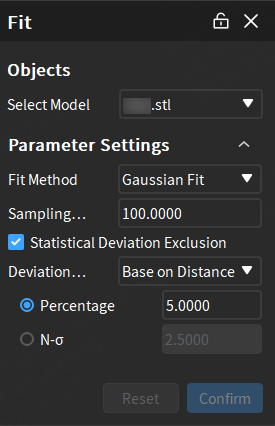
- Edit parameters.
- After completing the relevant settings, select tools in the toolbar below the 3D scene, then select the area to be fitted on the model; then click Confirm to create the new feature, and the object will be displayed in the
 feature module of the left-side tree view.
Col
Toolbar and Shortcuts

| Icon | Name | Description |
|---|---|---|
 |
Sphere | Select mesh vertices on the surface of the mesh model to choose the fitting region. Note NoteAfter enabling this function, other selection tools or the select through function can not be used. |
 |
Magic Wand | Automatically select adjacent areas on the mesh model according to curvature.Note |
 |
Select Through | By default, this feature is disabled, which means only visible surfaces can be selected. It can be enabled to select both the front and back regions of the model. |
 |
Rectangle | Select / Deselect the data area in the form of  rectangle. rectangle. |
 |
Polygon | Select / Deselect the data area in the form of  polygon. polygon. |
 |
Lasso | Select / Deselect the data area in the form of  lasso. lasso. |
 |
Brush | Use brush (support brush adjusting) to select / deselect the data area. |
| Function | Shortcut |
|---|---|
| Select | Shift+left-button |
| Deselect | Ctrl+left-button |
| Adjust the size brush | Shift+left-button |
Note
For more shortcuts, please refer to  > Shortcut Instructions in the top right corner of the interface.
Extract Measured Values
After creating reference features, the corresponding measured features can be extracted automatically or manually.
Note
Import at least one measured model before extracting measured features to generate feature pairs.
-
Automatic Extraction: Enable Auto Extraction of Measured Values via
 Settings in the upper right corner of the software interface or check
  Extract Measured Feature in the creation window. The software will automatically extract the corresponding measured feature with default parameters after creating any reference feature.
Note
If there are multiple measurement objects, please select the corresponding extraction object in the creation window; the default selection is the first measured model or the first measured model within the first measurement group.
-
Manual Extraction: After creating a reference feature, right-click the feature group in the tree view on the left, select Extract Measured Feature and specify the measurement model to be extracted; you can specify Align Object in the extraction pop-up window.
Note
When selecting sub-features, 2D features, or when there are only sub-features or 2D features in multiple selections or groups, right-click the feature group in the left tree view and select Extract Measured Feature to directly extract the measured feature without selecting a measured model.